I’m back with another free resource. As always, no services offered, but you will find Affiliate links.
The Summersverse has a truly massive cast of characters. And yes, that’s what I call my books’ universe. I only have two series out, but they’re both in the same world and, at present, I have 228 named characters.
No, I do not remember all of them. I barely remember half of them.
Why so many? Well, I don’t know about the places you’ve worked, but a beach the size of Sea Side’s takes a minimum of nineteen people to staff for a single shift. That’s not counting the closers or the people who have the day off. I knew early on that I needed a database of names so if I needed filler characters in a scene; I didn’t have to stop to invent a new minor character we might not ever see again.
When I started writing Sea Side Cove, I only had a handful of the characters planned: Carly, Ryan, Diana, Travis, and Madison. Zach, Katie, Aaron, and Miles all came from my random list of lifeguards and grew into their own. And if you’ve read my books, you know some of them have their own stories now.
But in my planning stages, I didn’t need complicated backstories or full character sheets. Those live in Plottr (Affiliate Link), which I will eventually write up. I needed to know basic facts, mostly eye color, hair color, age, and orientation at a glance. To do this, I built an Airtable sheet (Affiliate Link) where I could see all of that on one screen. That way, if I needed someone to walk by, I could make sure they didn’t have blonde hair in one chapter and red in another.
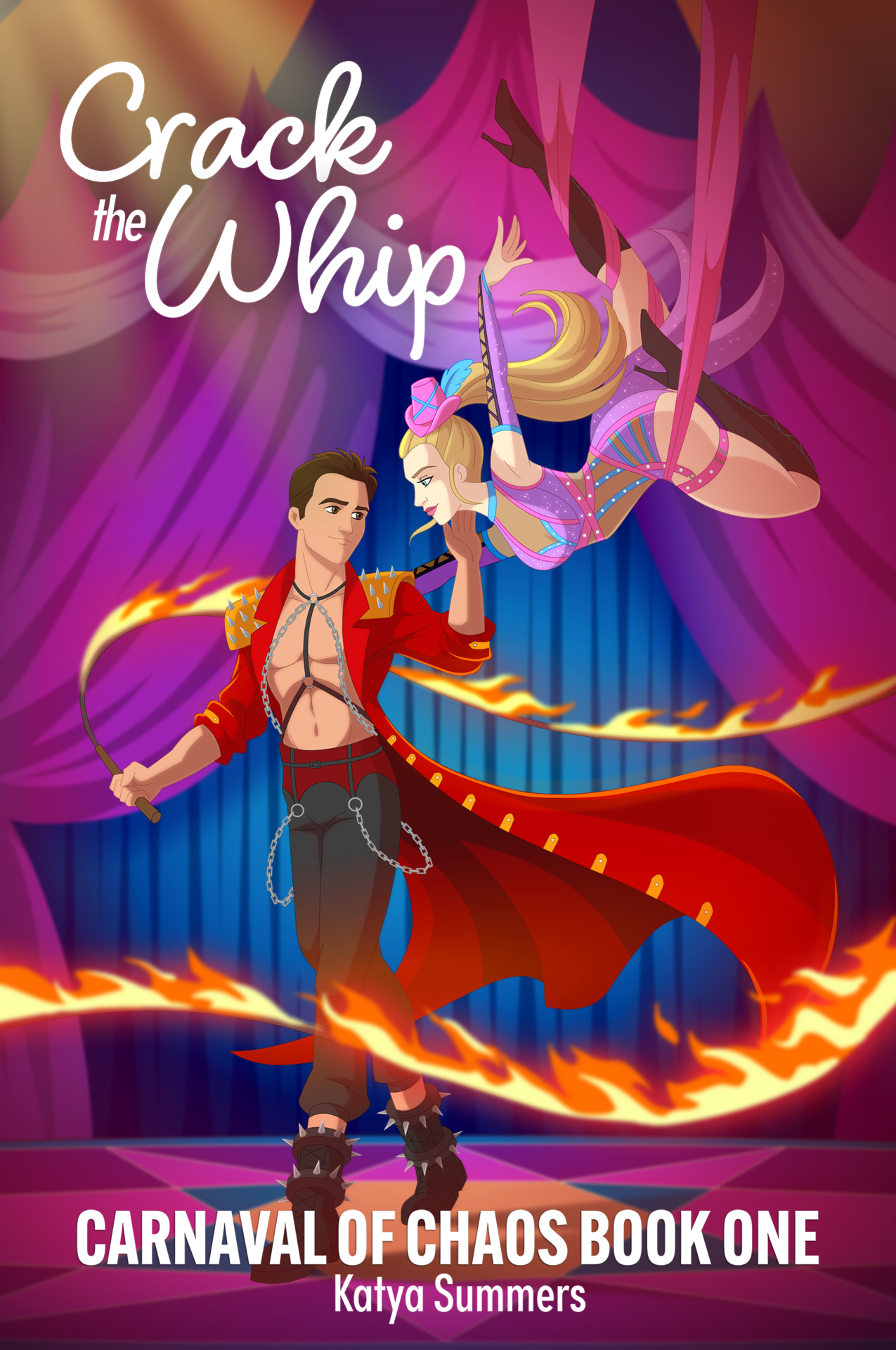
It’s also worth noting I have names on this sheet who probably never made it into the book, or characters who have last names and their last names aren’t in the book. When planning Carnaval of Chaos, I wrote down every possible cast and crew position, and I filled them. I hate stopping while I’m in the zone and losing my flow because oh, crap, we need another stage tech.
Now, I can’t just give y’all my sheet because holy spoilers, Batman. So I created a new sheet with characters from the Avatar: the Last Airbender universe. If you’re not familiar, it might be a little hard to understand, but it should still make sense.
There are a million Airtable tutorials out there. If you need Airtable help, please look at YouTube. It’s also free. You do not need any of the paid features to use this, but I get credit if you use my link even for the free account.
This sheet is made in a way that makes sense to my brain. It was made for my universe, and retrofitted for the Avatar Studios universe. It may not make perfect sense to you. Once you make a copy, you can edit it to your heart’s content. I also threw a version I could share together in a couple of hours while waiting for my Cricut to complete a huge project, so try not to judge it too harshly and ignore all the stuff I left blank. I’m going to break down the columns and how I use them.
Name
Self explanatory. First and last if they have a last name.
Type
-
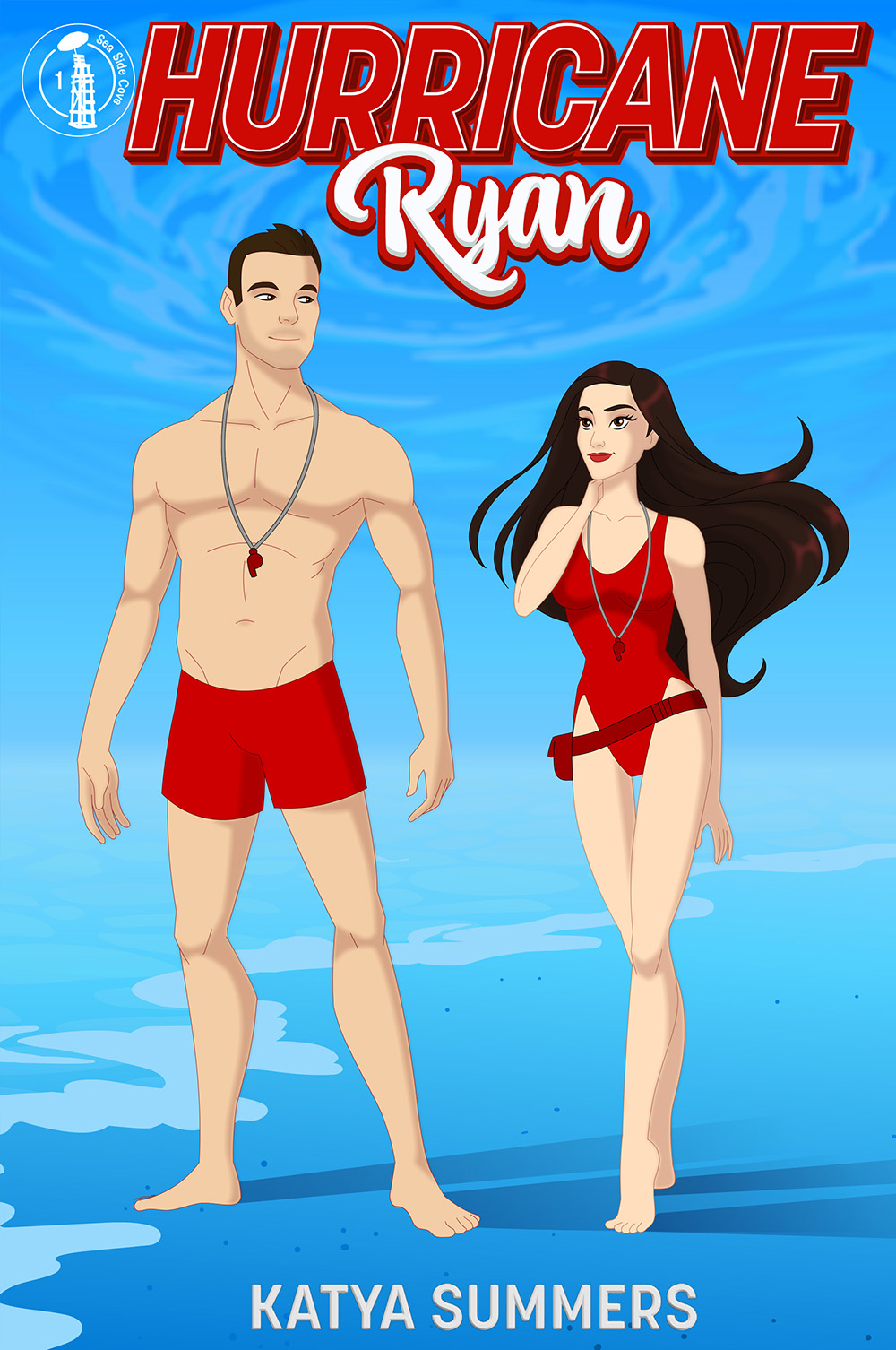
Main: A character who has their own book or story in which their romance is the main plot. Carly and Ryan are the main characters of Hurricane Ryan. They go on to be supporting characters in other books and may even make an NPC appearance, but because they have their own story, they are listed as Main.
-
Supporting: The roommates, the best friends, the cats. While I consider Toph a main character of Avatar: the Last Airbender, for purposes of my system, she should actually be listed as Supporting since she does not have a love story that is its own plot.
Minor: These are the characters we see a few times, but we don’t necessarily know their stories. The coworkers, the neighbors.
NPC: Characters that show up but have no bearing on the story. Waiters, rideshare drivers, cabbage merchants. I realize calling them NPCs is a weird way to describe it in a book, but I’m married to a Dungeon Master and it was an easy label.
Series
All the series a character appears in.
Appearances
This is where I check off the books a character is in. For example, Carly is the only character that appears in both Rough Waters and Hurricane Ryan. Korra can’t be in Avatar: the Last Airbender because she wasn’t born yet.
Affiliation
This is where things get fun. I tag people for EVERYTHING. Employer, job, family, roommates, where they live, everything. If you want to be able to see a list of all characters that have something in common, this is where you do. If you’re a sports romance writer, you’ll want one for every team. If you want to see all members of a certain family, tag them here. If you have eight characters going on a side quest and you want to be able to see only them, tag them!
Gender
I tried to make this dropdown as inclusive as I could.
Age
I do their age when that character’s story starts. Aang is twelve in Avatar: the Last Airbender. Avatar Aang: the Last Airbender is ten years later, so he’s ten years older, but adjusting the chart gets irritating, so I do math based on where we are in the timeline.
Race
This is going to vary. As you can see, I tagged the Avatar characters by nationality, but Appa is listed as a Sky Bison because that is his species. Obviously, if you’re writing fantasy versus contemporary, this can go all over the place.
Orientation
Orlando’s workforce is diverse, and so are my side characters. Again, I tried to make the dropdown as inclusive as I could, I’m sure I missed something.
Hair Color
Fill in the blank.
Eye Color
This one is on a dropdown because there usually aren’t as many eye colors as there are hair colors.
Height
Fill in the blank.
Body Type
Fill in the blank.
Role
This one varies. A lot of the time it’s blank. But if they have a crucial role in the story, I note it here. Show director, stage manager, Avatar, teacher, etc.
Notes
Notes: This is where I put anything else I need to remember. Toph is blind. Teo uses a wheelchair. Pavi and Nisha are twins.
Over on the left hamburger menu, you will find Views. I built a few in so you can play with them, but you can make your own. I can pull up characters by series, by affiliation, by type, whatever I need to. This is the feature that makes affiliation so handy for sorting.
Filters, groups, and sorting help you make Views and keep things organized. Again, look into Airtable tutorials if you need help with those.